Phone Verification by SMS
DialMyApp team proposes 3 variants of phone verification by SMS:
-
Phone verification flow is coded inside the app. In this flow, the user will be asked for his phone number. After this a SMS will be sent to the provided number containing an OTP and the APP apphashcode, for automatic OTP read and phone registration. If the automatic read doesn't happen for any reason, the user will be asked to input the OTP manually.
-
Phone verification flow is coded inside a special profile. In this flow, as same as the flow described above, the user will be asked for his phone number. After this a SMS will be sent to the provided number containing an OTP and the APP apphashcode, for automatic OTP read and phone registration. If the automatic read doesn't happen for any reason, the user will be asked to input the OTP manually. Basically the difference between this option 2 and option 1 is that now the effort from the Company's dev team is only to call a function to open this special profile. All the screens and registration process will be completely done by the special profile developed by DialMyApp.
-
Phone already verified is provided to DialMyApp. This case applies to the companies that have already developed a phone verification flow in their apps. In this scenario, the Company's dev team will have to call a function to provide the verified phone to DMA.
All these 3 ways are described below in corresponding sections.
It is necessary to add the following implementation inside the gradle in order to activate sms verification:
where: $gsmVersion is a version of the GSM library you use, or the latest one.
Verification process lifecycle
"org.mbte.dialmyapp.sms.DmaVerificationBySmsProvider" is a helper class which provides the possibility to perform phone number verification by sms. To get an instance please invoke DmaVerificationBySmsProvider.getInstance(context).
To follow process lifecycle class provides callback class OnVerificationCallbackClass which implements interface OnVerificationCallback - provides functions which trigger depending on the current state during the verification process:
- beforeRequestOtp()
- onStartWaitingSms()
- onCodeReceived()
- onVerificationCompleted() - required to override
- onVerificationFailed() - required to override
DmaVerificationBySmsProvider class contains function which helps to check if verified phone number is already set:
- "getVerifiedNumber()" function returns a phone number which has been set as verified - due to the phone number SMS verification DMA mechanism or set in a manual (programmatically) way, using the function "setVerifiedNumber()".
How to generate the apphashcode
OTP - One Time Password - code which the user receives by SMS. Example of a received sms -> <#> Your code is: 1111 appHaShCoDe
where: "appHaShCoDe" - hashcode of application. By this code the android system defines which application is sms target. It's required to provide this code to DMA.
The official Google's documentation of how to generate the apphashcode can be found on this link. If you OS is Windows, please check the instructions from Microsoft on this link. But, checking the provided documentation, it's possible to conclude that the command is not 100% reliable and can generate a bad apphashcode. If an error of reading the certificate happens, it won't show an error and will compute the hash of the error message. There's a python alternative code that can be used to calculate it on this Github page.
Our recommendation is to follow the official instructions from Google/Microsoft, and use the python code to double check it. If it differs, please review carefully what can be wrong.
Please note that Google's documentation also refers to an alternative method to get the apphashcode, using the AppSignatureHelper class.
1. Phone verification flow is coded inside the app
Developers provide a custom UI and adjust UI changes behavior according to verification process lifecycle events.
An example of possible process steps:
1.2. Fill phone number
First, let's start by asking the user to fill in their phone number. In the DialMyApp application we show a user a page with an input field and ask to fill in his phone number (DMA handles phone numbers in international format), by clicking on the "Next" button show user confirm dialog (to check phone number one more time).

1.3. Send phone number to DMA
You can send filled phone number to DMA server by invoking DmaVerificationBySmsProvider.getInstance().verifyPhoneNumber(context, phoneNumber, callback, doAllInBackgroundFlag)
- Context context
- String phoneNumber - in international format !!!
- callback - instance of OnVerificationCallbackClass class, callback is available during the whole lifecycle of the verification process. Please override all available functions of this class to receive all lifecycle events.
- doAllInBackgroundFlag - pass "true" as argument to receive the end result of the verification process only. It means only onVerificationCompleted() and onVerificationFailed() functions trigger.
1.4. Show progress bar (optional)
beforeRequestOtp() callbacks function triggers right after invoking the "verifyPhoneNumber()" function. Might be used to show the user progress bar. Don't forget to hide progress when it is necessary - use further lifecycle events.
1.5. Wait for SMS
onStartWaitingSms() callback triggers when the server sends a SMS with OTP on a previously specified phone number. User starts waiting for an SMS.
At this point, you can show the user the new UI - next page - with an intention to notify him about the process state (e.g. show a message that he'll receive an sms soon).
1.6. Receive SMS (automatically)
onCodeReceived(smsCode) - triggers after receiving the sms with OTP. Receiving SMS is happening in the background automatically. Here you might put received code in the input field, update UI to show the user that sms otp is received and request the user to continue the verification process by clicking on "Next" button and sending otp code to server.

1.7. Send OTP to DMA
Send received OTP code by invoking DmaVerificationBySmsProvider.getInstance().confirmOtpCode(String smsCode)
- String smsCode - OTP code which the user receives in SMS.
1.8. Verification DONE
onVerificationCompleted(verificationToken) - function triggers in case of success complete of the verification process. It means that the specified phone number is confirmed.
- String verificationToken - is generated by the server after success confirms OTP code. It might be used for further requests where a token is required. This token is a flag that the phone number was verified by sms.
At this point the user is confirmed that his phone number is real - so, the verification process is DONE.
1.9. More: If error occurs
onVerificationFailed() - this function might trigger between any previous steps. Some error has occurred. There are many possible reasons and inside DmaVerificationBySmsProvider class is listed the most popular of them (as constants):
Related to request OTP:
public static final int ERROR_REQUEST_OTP_TOO_MANY_REQUESTS = 1;(Not often than one SMS in two minutes)public static final int ERROR_REQUEST_OTP_NO_SMS_SERVICE = 2;public static final int ERROR_REQUEST_OTP_NO_DATA = 31;public static final int ERROR_REQUEST_OTP_SESSION_EMPTY = 32;public static final int ERROR_REQUEST_OTP_SMS_SERVICE_ERROR = 37;
Related to confirm OTP:
public static final int ERROR_CONFIRM_OTP_NO_DATA = 33;public static final int ERROR_CONFIRM_OTP_TOKEN_EMPTY = 34;public static final int ERROR_CONFIRM_OTP_INCORRECT = 35;public static final int ERROR_CONFIRM_OTP_TIMEOUT = 36;(expiration time is 3 minutes)public static final int ERROR_HAS_NO_FEATURE_TELEPHONY = 21;public static final int ERROR_SIM_STATE_ABSENT = 22;
Please use these constants to differentiate errors and display appropriate popup messages to users.
Common error cases:
- ERROR_REQUEST_OTP_TOO_MANY_REQUESTS - user requests SMS too often. Please ask him to wait 2 minutes - show a popup with such a message.
- ERROR_REQUEST_OTP_NO_SMS_SERVICE - probably there are no SMS providers in your country which supports DMA
- ERROR_REQUEST_OTP_SMS_SERVICE_ERROR - errors from SMS API provided by customer.
- ERROR_CONFIRM_OTP_INCORRECT - user put incorrect OTP
- ERROR_CONFIRM_OTP_TIMEOUT - user had waited more than 3 minutes before confirming code. Code is expired. Need to start the process from the beginning.
- ERROR_HAS_NO_FEATURE_TELEPHONY - user device doesn't have SIM card slot.
- ERROR_SIM_STATE_ABSENT - has no SIM card in user's device.
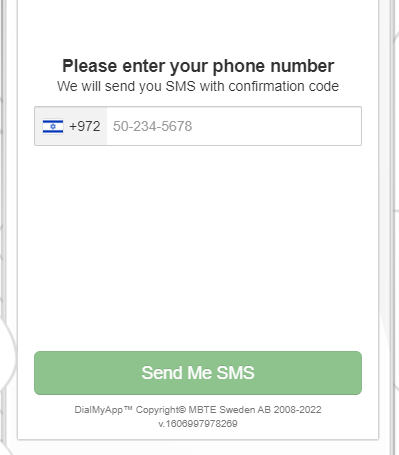
2. Phone verification flow is coded inside a special profile
On request of the customer, DialMyApp team can create a special menu that will encapsulate all logic for verification of the phone number. For this to be done, a customer will need to send the UI and all texts for the full screen window required. DialMyApp team will implement it in a way of a menu with the requested UI. The code that customer will need to execute for this flow will look as following (ask for exact code for particular customer's profile):
Here, "SMS Verification" is an example of a menu name prepared for your app. Please clarify the exact name of your menu with DMA and use it in the provided code example.
Sample of screen:
3. Phone already verified is provided to DialMyApp
Verification on your side, in this case just provide us with a verified phone number. To do it please invoke:
import org.mbte.dialmyapp.sms.DmaVerificationBySmsProvider;

DmaVerificationBySmsProvider.setVerifiedNumber(context, phoneNumber);

/**
* Please strongly consider to use this function instead of deprecated previous one
*/
DmaVerificationBySmsProvider.setVerifiedNumber(context, phoneNumber, signature, source);
import org.mbte.dialmyapp.sms.DmaVerificationBySmsProvider

DmaVerificationBySmsProvider.setVerifiedNumber(context, phoneNumber)

/**
* Please strongly consider to use this function instead of deprecated previous one
*/
DmaVerificationBySmsProvider.setVerifiedNumber(context, phoneNumber, signature, source)
where:
- phoneNumber - phone number to save as user own, with the country Code (sample +5511012345678)
- signature - signed phone number with your private key, that DMA server can verify with the public key you provide to us (use some RSA signature algorithm for this on your server side, and we can implement it on our side to verify the phone number).
- source - your name of application. Our server will understand by this label which public key to use in RSA signature verification process.
When you use a method with a signature, we can fully trust the phone number for using it from the server to the different API's where the phone number is used.
Use DmaVerificationBySmsProvider.getVerifiedNumber(context); to get the user's previously verified phone number.